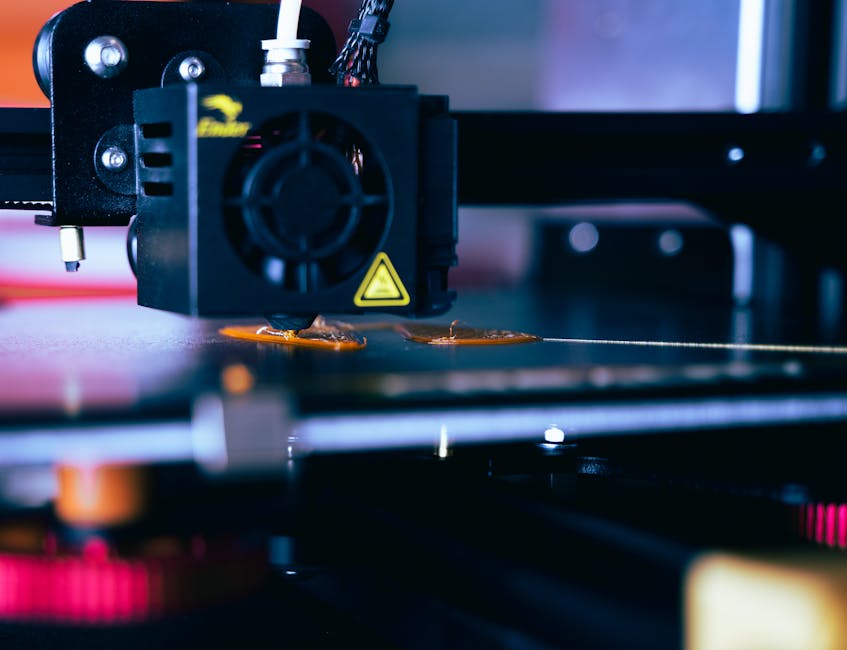
FDM temperature is the hidden variable behind most “why does this look wrong?” moments—stringing, weak layer lines, rough surfaces, and overhang droop all trace back to how much the nozzle is melting (and how consistently). This workflow shows you how to dial it in using a temperature tower, what to inspect on each segment, and how to set the final temperature so you can stop chasing it.
Set a controlled temperature range

Then choose a range you can actually learn from:
- Pick a starting point from your slicer profile or filament guidance (typical range, not a single magical number).
- Expand that into a short “learning window” where you’re likely to see clear differences.
- Make sure the window is wide enough that one end produces obvious defects (too cold or too hot), but not so wide that you lose the ability to compare.
In practice, a temperature learning window is usually on the order of a few tens of degrees total, with several steps inside it. If you’ve never dialed temperature for this filament before, err toward a wider spread so you can see the full spectrum of results.
Slice a temperature tower workflow
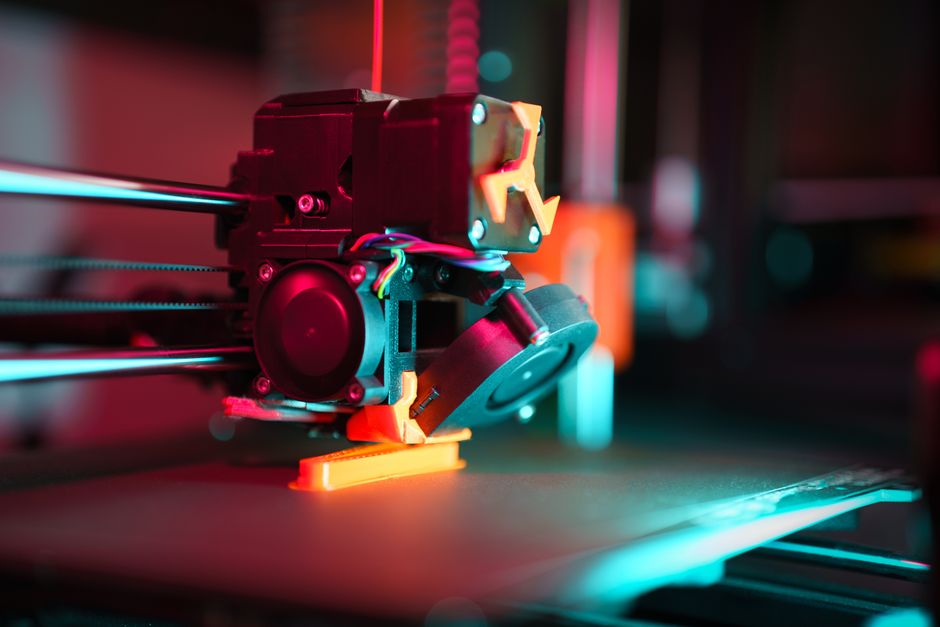
Use this workflow to set it up and keep it trustworthy:
- Choose your tower range (low to high) and step size, based on the typical temperature guidance for your filament.
- In your slicer, set the tower so each height band prints at a different temperature.
- Keep print speed, layer height, cooling, and retraction consistent across the tower.
- Ensure the tower has enough height for your step count, and enough wall/structure to make defects easy to see.
- Print one tower with the correct nozzle and fan settings you intend to use for normal prints.
- Take notes on each temperature band as it prints (or at least during post-print inspection) so you don’t rely on memory.
If your slicing setup supports it, include an overhang or bridging element that prints at the same height bands. If it doesn’t, plan to do a quick overhang check after you pick a temperature based on stringing and bonding.
Evaluate stringing and oozing
Your first inspection pass should answer one question: “Is the nozzle hot enough to leave unwanted plastic behind?”
Look for:
- Stringing hairs between separate features: The best temperature band usually has dramatically fewer wisps.
- Blobs, zits, or heavy oozing at the tower surface: Too hot often produces rounded globs and wet-looking extrusion. Too cold can cause inconsistent extrusion that still looks messy, but in a different way.
- How quickly the nozzle seems to “settle” after a temperature change: If a segment looks contaminated by the previous one, you may need more time for stabilization (some slicers offer a delay after changing temperature).
Important: don’t pick purely by “least stringing.” A temperature that minimizes hairs can still be too cold for strong layer bonding, especially for thicker walls or functional parts.
Check layer bonding and surface finish
Next, inspect how well adjacent layers are fusing and how clean the surface becomes. This is where temperature affects strength.
What to look for:
- Layer bonding: In the best band, layers should merge smoothly with no visible gaps or seams. If you can see obvious lines separating layers, the filament may not be fully melting and wetting together.
- Surface finish:
- Too hot can look glossy, rounded, and overly “melted,” sometimes with slight blobbiness.
- Too cold can look grainy, rough, or slightly under-extruded, with sharp edges that don’t blend.
- Dimensional consistency: A temperature band that holds tight walls without swelling or shrinking is usually closer to correct.
A practical trick is to focus on the segment where surfaces look clean and the layer lines disappear as much as they can. If you have multiple “almost good” bands, choose the one that looks strongest rather than the one that only looks neat.
Test overhang droop and finalize settings
Even when stringing and bonding look excellent, the real-world test is often overhangs, bridges, and small details. Overhang droop happens when melted material stays too fluid for too long.
Use one of these approaches:
- If your tower includes overhang geometry: inspect the overhang edge for rounding and sag. The best temperature band is where the overhang holds its shape without turning into a drooping curtain.
- If your tower doesn’t include overhangs: pick your top 1–2 candidate temperatures first (based on stringing + bonding), then print a small overhang/bridge test at those temperatures.
How to choose the final value:
- If one temperature band gives the cleanest bonding but the overhang droops, step down slightly (and reassess). Lower temperatures generally firm up the material faster.
- If one band gives good overhang geometry but layer seams look weak, step up slightly. Higher temperatures improve melting and inter-layer fusion.
- If you find a “sweet spot,” lock it in by running a short confirmation print (even a small model) that matches your usual geometry: walls, a curve, and at least one feature that challenges cooling.
To lock in your final nozzle temperature:
- Update your slicer material/profile to the chosen temperature.
- Save it under a clear profile name that matches that filament type and diameter.
- Keep cooling and retraction settings the same you used during the tower. If you change fans afterward, you’ll be changing more than temperature, which makes future comparisons harder.
Once you’ve done this, you’ll stop playing temperature whack-a-mole. Dial in one stable nozzle temperature for each filament type, then fine-tune speed and cooling for quality—rather than constantly changing temperature and wondering which defect you caused.
PriceIt3D may earn a commission when you buy through links on this page, at no extra cost to you. Affiliate notice.