Consistent extrusion is not about finding one magic setting. It’s about separating pressure dynamics (where K-factor and pressure advance/linear advance live) from steady-state volumetric flow (where slicer flow/“extrusion multiplier” and temperature-aware flow changes live).
Below you’ll set up a repeatable dimensional test, measure it the same way every time, interpret whether you’re seeing pressure mismatch or flow mismatch, and adjust K-factor and flow compensation (including slicer “emergency” multipliers) to reduce over- and under-extrusion across temperatures.
1) Start with a baseline that won’t contaminate your calibration

Do these checks first:
- Verify the extruder drive is calibrated (e-steps/rotation-to-filament length). If E-steps are wrong, your “flow” fixes will chase the wrong error and look inconsistent across temperatures.
- Confirm the nozzle is at the correct height (first-layer calibration doesn’t need to be perfect for wall test prints, but consistent gap/height matters for line width).
- Use the same filament condition every run. Moisture and filament diameter variation show up as apparent flow changes, especially with PETG. If you’re testing materials like Filament PM PETG 1kg 1.75mm Coffee Bronze (Metallic) and Filament PM PETG 1kg 1.75mm Turquoise Blue, keep drying/handling consistent so differences reflect your tuning, not wetness.
- Choose one consistent print speed and fan behavior for the calibration tests. Pressure advance and cooling both influence how much filament sticks and spreads.
2) Run a repeatable dimensional test across temperatures
Use the same model geometry, orientation, nozzle, and slicer line settings for every temperature. Only change temperature and then tune one compensation at a time.
Follow this procedure:
- Pick two temperatures that bracket your usual range (for example, a “lower” and a “higher” value your slicer supports for the filament). Make sure you won’t be hitting extreme melt or poor layer bonding.
- Select one wall-related test style: either a multi-wall wall-thickness block or a single-wall line pattern that clearly produces measurable line width. Keep layer height consistent.
- In the slicer, disable temperature-based flow tricks temporarily (if your slicer has them). Set a neutral starting flow value (commonly 100% / 1.00) so you can attribute errors correctly.
- Lock K-factor/pressure advance at a reasonable starting value for your firmware (don’t change it during the flow sweep). If your firmware requires a reset between prints, do it once so the setup is stable.
- Print the test at both temperatures with the same speed, retraction settings, and cooling. Use the same orientation so thermal effects hit the same surfaces.
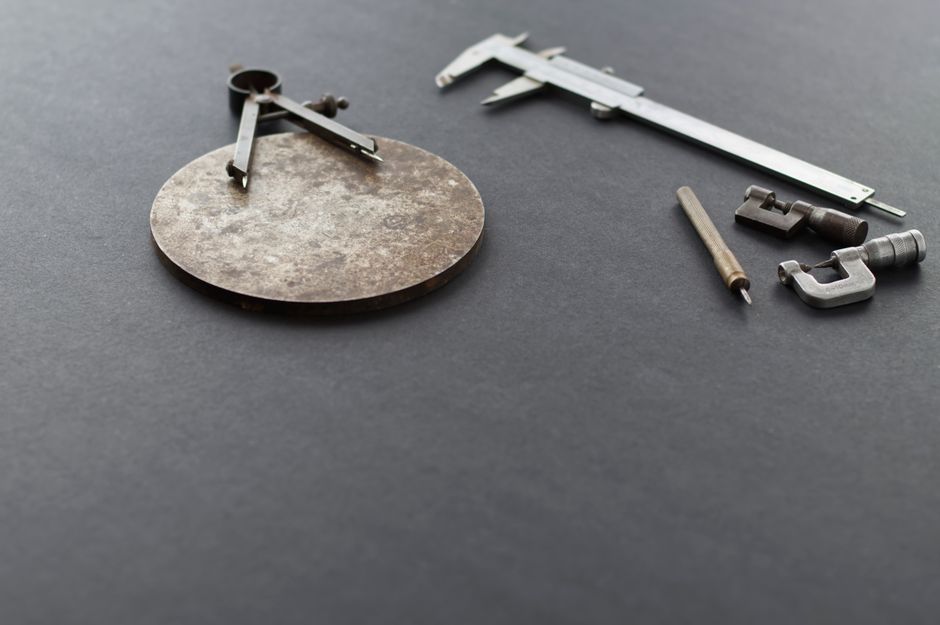
- Measure the same feature(s) every time: for wall thickness tests, measure multiple points across the part; for line-width tests, measure across several segments where the line is long enough to reflect steady extrusion.
- Average your measurements and calculate error relative to the target (actual vs expected). Keep the raw numbers for each temperature—these are what you’ll adjust against.
This produces a clean dataset: one temperature pair (low/high) with the same mechanical and slicing conditions, plus one K-factor state.
3) Interpret results: pressure/ K-factor error vs flow compensation error
Once you have measurements, you need to decide whether the mismatch is primarily:
- Flow mismatch (steady-state volumetric output): your entire wall/line is consistently thicker or thinner than expected.
- Pressure mismatch (dynamic response): accuracy varies with corners, start/stop, and travel transitions—often you’ll see localized thick/thin bands rather than a uniform offset.
A practical way to separate them with the test you printed:
- If wall thickness (or line width) is consistently too large at both temperatures, your flow is likely too high (or your dimensional target in the slicer doesn’t match how the line is being generated).
- If the error changes sign with temperature (over-extrusion at one temp, under-extrusion at the other), it’s usually telling you the material’s flow/viscosity changes more than your current compensation accounts for.
- If thickness errors look spatially patterned (edges/ends/corners deviate more than straight, steady segments), K-factor/pressure advance is more likely to blame. Flow can still be involved, but pressure mismatch tends to produce “behavioral” defects rather than a simple whole-wall scaling.
Why this matters: adjusting flow to fix a pressure problem often makes straight sections look better while corners worsen. Adjusting K-factor to fix a pure flow issue makes temperature scaling unpredictable.
4) Adjust K-factor to reduce dynamic over/under-extrusion
K-factor (pressure advance / linear advance) compensates how much extra material the printer squirts during acceleration and deceleration. Increasing K-factor generally increases compensation; decreasing it reduces compensation. The exact direction depends on your firmware conventions, but the goal is consistent dimensions during transitions.
How to tune without breaking repeatability:
- Keep flow compensation fixed while you tune K-factor.
- Change K in small, consistent increments. If your printer overshoots (corners bulge or you see thick leading behavior), move K toward less compensation. If you undershoot (corners look starved/thin), move K toward more compensation.
- Reprint the same test geometry at the same temperatures you already used. Even if K doesn’t “scale perfectly” with temperature, it should still converge to a value that reduces the transition artifacts.
Tip: If your test is mostly wall thickness, it may be less sensitive to K than a calibration that emphasizes corners or start/stop. If you notice the “uniform offset” issue is already solved by flow, but you still see localized thick/thin behavior, that’s the tell that K-factor needs another iteration.
Why K matters for consistency: when K is off, the printer’s instantaneous extrusion rate changes at motion boundaries. That means your dimensional results won’t be stable across speed changes—and temperature changes can make that instability worse by changing melt behavior.
5) Calibrate flow compensation and use “emergency” multipliers carefully
Once K-factor is reasonably dialed in, use flow compensation to correct the steady-state scaling error. In slicers, this is typically done via a flow/volumetric extrusion multiplier or an overall “extrusion multiplier.” Some workflows also use a temperature-aware flow adjustment.
To make it consistent across temperatures:
- Use your measurement errors at both temperatures. If you’re too large at the low temperature and too small at the high temperature (or vice versa), a single global flow number won’t satisfy both temperatures. That’s a sign you need a temperature compensation strategy.
- Adjust flow so that one temperature becomes correct, then decide how you want the other temperature to behave:
- If both temperatures need the same direction change, a global flow tweak may be enough.
- If they need opposite direction changes, introduce temperature-aware flow compensation (if your slicer supports it) or create a manual workflow where you adjust flow slightly when you change temperature.
About “emergency multipliers”: these are quick overrides (slicer flow/extrusion multipliers, M221-style flow ratio overrides, or similar controls) that can salvage print quality when you discover a mismatch mid-job. They’re useful, but they can mask deeper problems if you treat them as the primary calibration method.
The safest approach is:
- Treat emergency multipliers as your last-mile correction.
- Use K-factor calibration first, then steady-state flow, then temperature-aware behavior.
- Avoid stacking multiple flow adjustments at once (for example, slicer flow compensation plus temperature-based flow plus an emergency override). Stacking makes it hard to know which knob caused the change.
A workflow that stays maintainable:
- Pick a “main” temperature for your filament (the one you print most).
- Tune flow so that temperature first nails that main point.
- Then tune temperature compensation (or a small manual flow delta) so the other temperature comes close without re-breaking the main point.
Finally, rerun a single quick dimensional check after you change temperature, even if you think only temperature changed. PETG especially can change behavior with drying state and surface conditions; consistent handling keeps your compensation meaningful.
If you want the fastest path to consistent extrusion, do it in order: fix E-steps/mechanics, tune K-factor with flow held steady, then tune flow so straight sections match, and only then build temperature compensation so low/high prints converge instead of trading one error for another.
PriceIt3D may earn a commission when you buy through links on this page, at no extra cost to you. Affiliate notice.